SAML MS Entra ID Configuration
Overview
This tutorial will walk you through the steps required to set up Faction with your Microsoft Entra ID Single Sign-On using SAML.
Configuring Entra ID in Azure
- Open the Azure Console and navigate to "Entra ID".
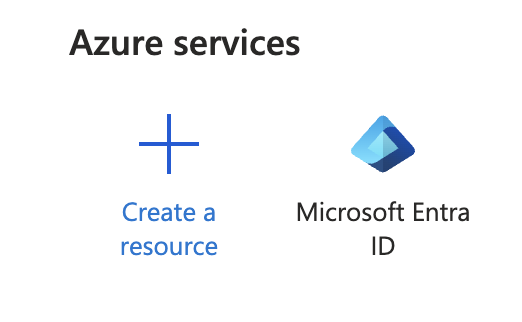
- Navigate to Enterprise Applications.
- Click "New Application"
- Click "Create your own application."
- Enter a name (e.g. Faction SAML) and select the "Integrate any other application you don't find in the gallery (Non-gallery)" radio button.
- Click Manage->"Single Sign On", then select SAML
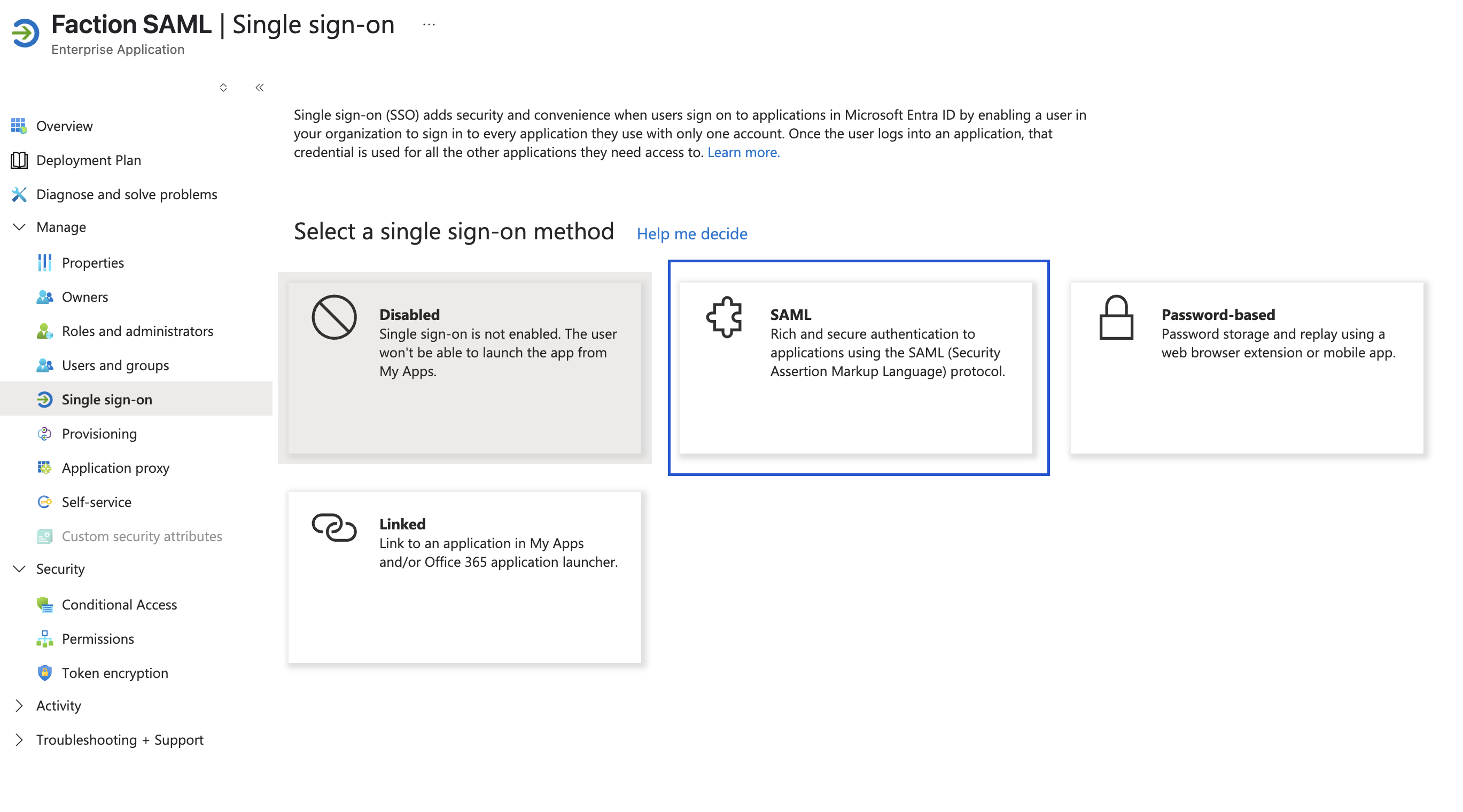
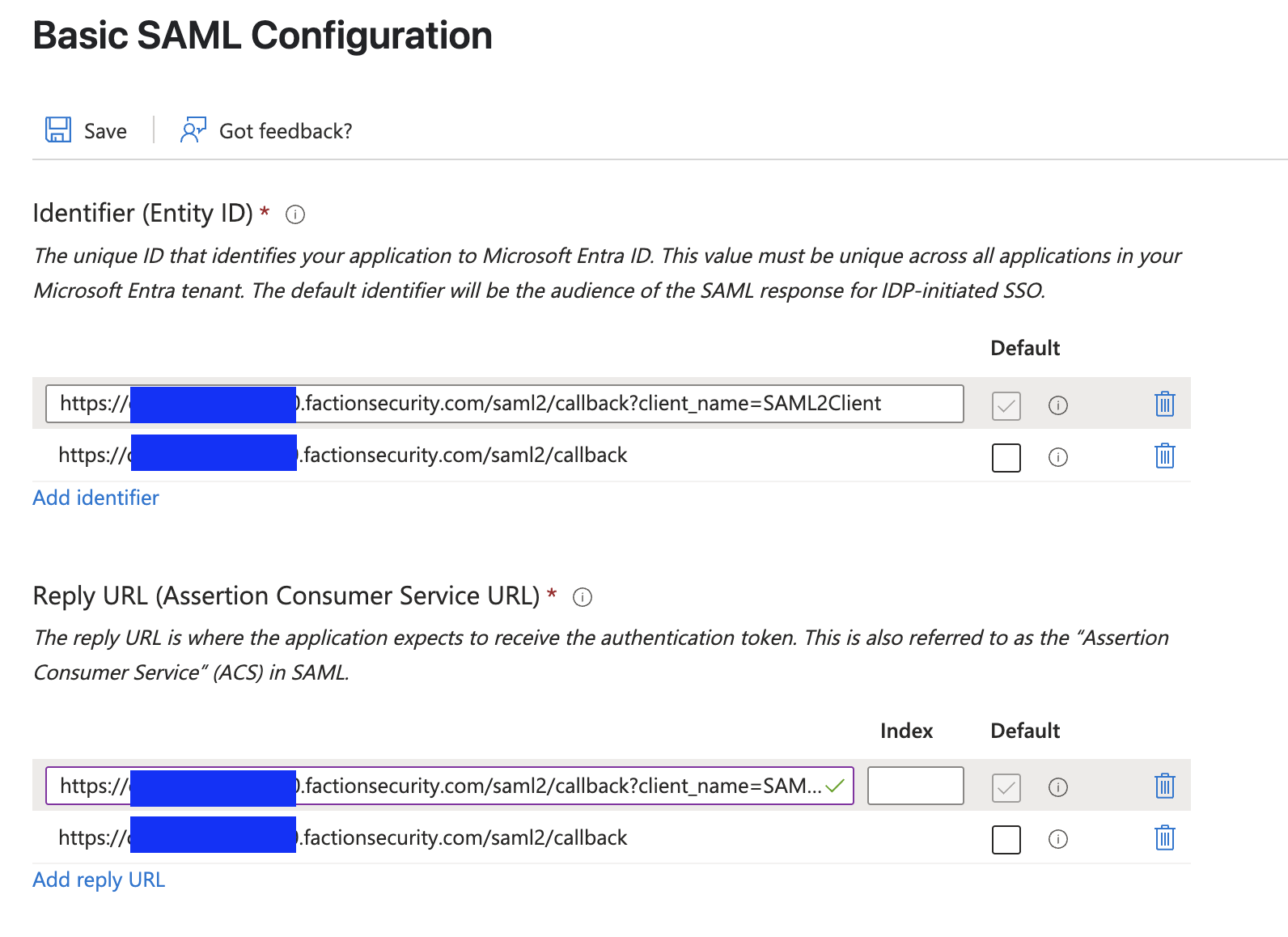
- Click 'Edit' under "Basic SAML Configuration"
- Under Identifier (Entity ID) enter the following URLs:
https://yourfactionurl.com/saml2/callback?client_name=SAMLClienthttps://yourfactionurl.com/saml2/callback- Under "Reply URL (Assertion Consumer Service URL)", add the following reply URLs:
https://yourfactionurl.com/saml2/callback?client_name=SAMLClienthttps://yourfactionurl.com/saml2/callback- If your config looks like the image below, then click 'Save'.
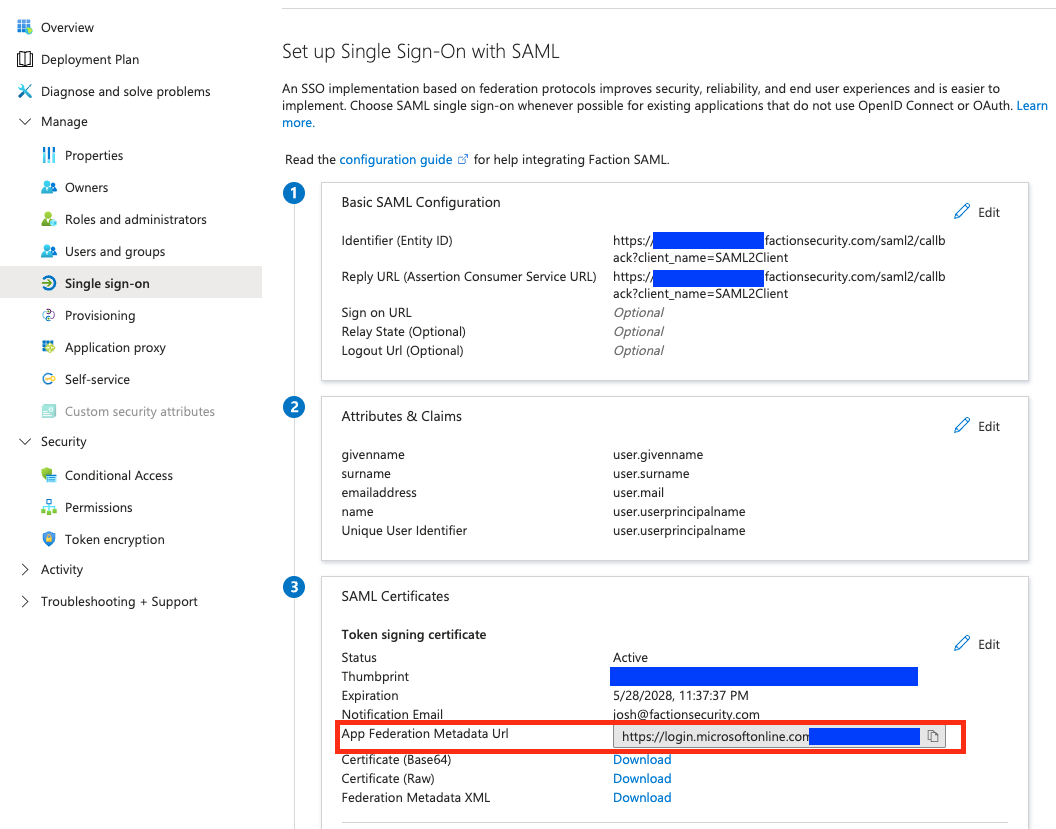
- Now navigate to "Single Sign On" and copy the "App Federation Metadata Url". This will be used in the next section.
Finish Configuration in FACTION
With the Federation URL copied, you are now ready to finish the configuration on the Faction side. 1. Log in to Faction as an admin 2. Navigate to Administration->Users 3. Scroll to the bottom and enter the URL we copied from step 11 above into the "App Federation Metadata Url" input box. 4. Click Save
Configure a User for SAML Authentication
- Log in to Faction as an admin
- Navigate to Administration->Users
- Click Add User
- Set the following parameters:
- Set the username to the first part of the email address.
- Enter the first and last name of the user
- Leave the password blank
- Set the email address. It MUST match the email address of the user managed in Entra ID.
- Set the "Authentication Method" to SAML2
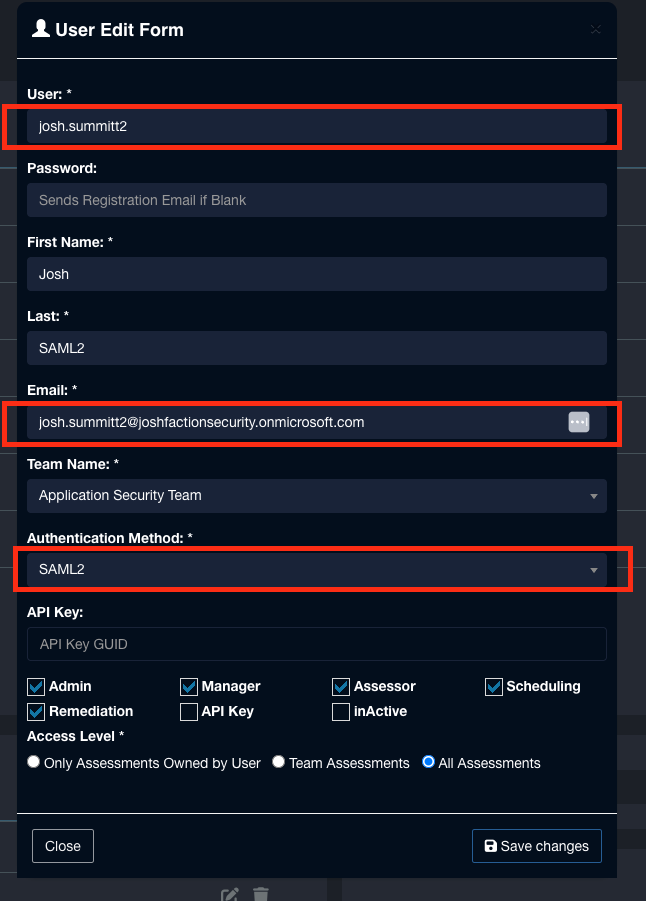
- Click Save
Login with SAML
SAML users only need to enter their username and submit login. Faction will automatically redirect the user to the SSO login form.
Custom Sign-On URLs
You can bypass the username and password form by bookmarking the below URL. This ensures you don't need to enter a username just to be redirected to your SSO portal, where the user needs to enter their username again. The below URL will redirect directly to your configured SSO portal for SAML.