User Defined Fields
User defined fields add information to Faction that it does not track out of the box. Use them to capture extra details on each finding, such as an affected URL or a CWE number, or to collect report-level content such as an executive summary, a product owner or a cost centre. Every field gets a ${variable} you can drop straight into the DOCX template.
In Faction 2 these fields belong to a report template, and a report template belongs to an assessment type. That is what makes them assessment-specific: a Web Application template can carry an "Affected URL" field while a Network Security template carries "Affected Network Range", and each assessment only ever sees the fields of its own template.
Step 1: Add the field in the Report Designer
Navigate to Admin → Content & Reporting → Report Designer and select the template. Near the bottom of the page are two panels:
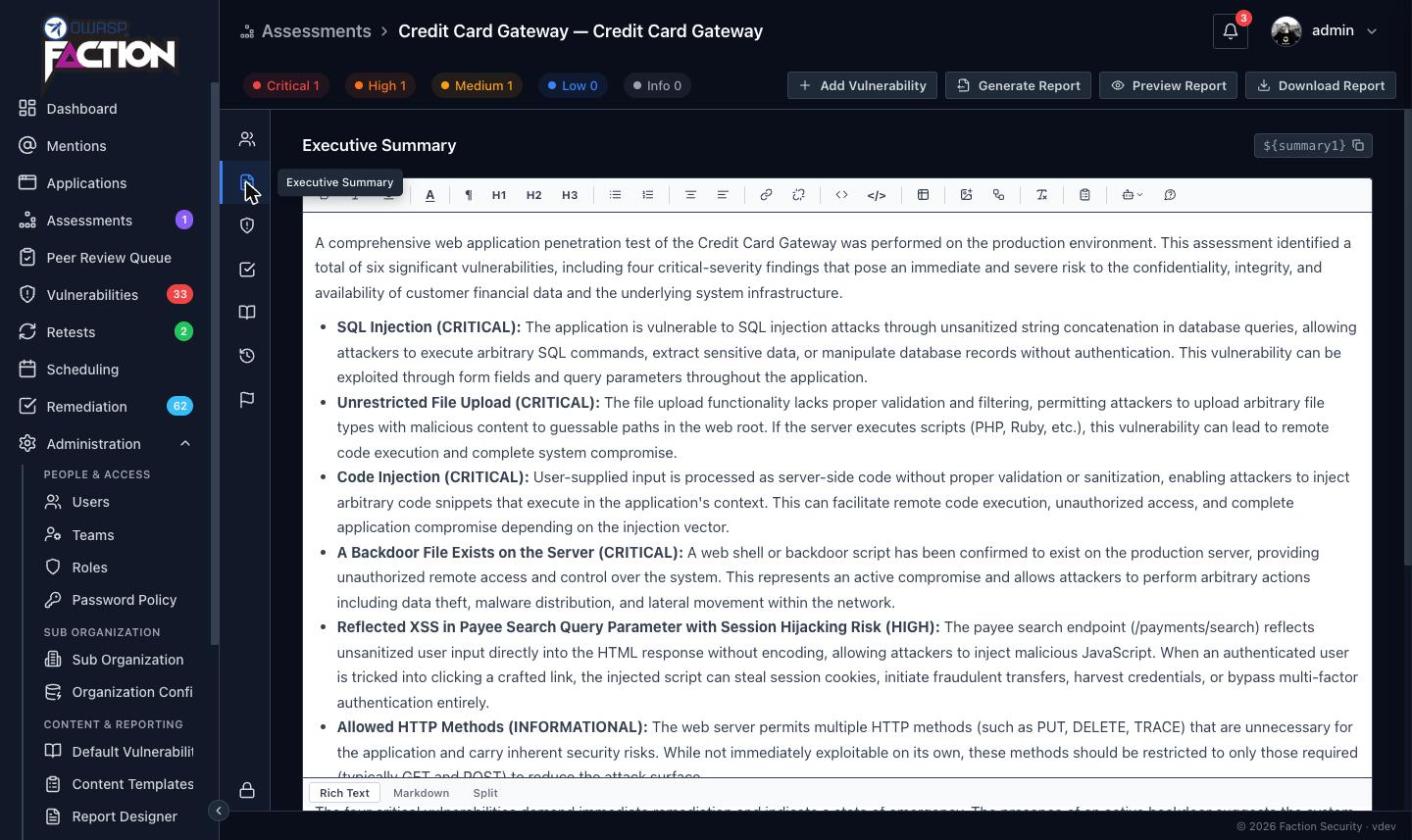
- User Defined Fields — Assessments holds fields that are filled in once per assessment. Each Rich Text field gets its own tab on the assessment; the String and Dropdown fields are grouped together on a separate tab.
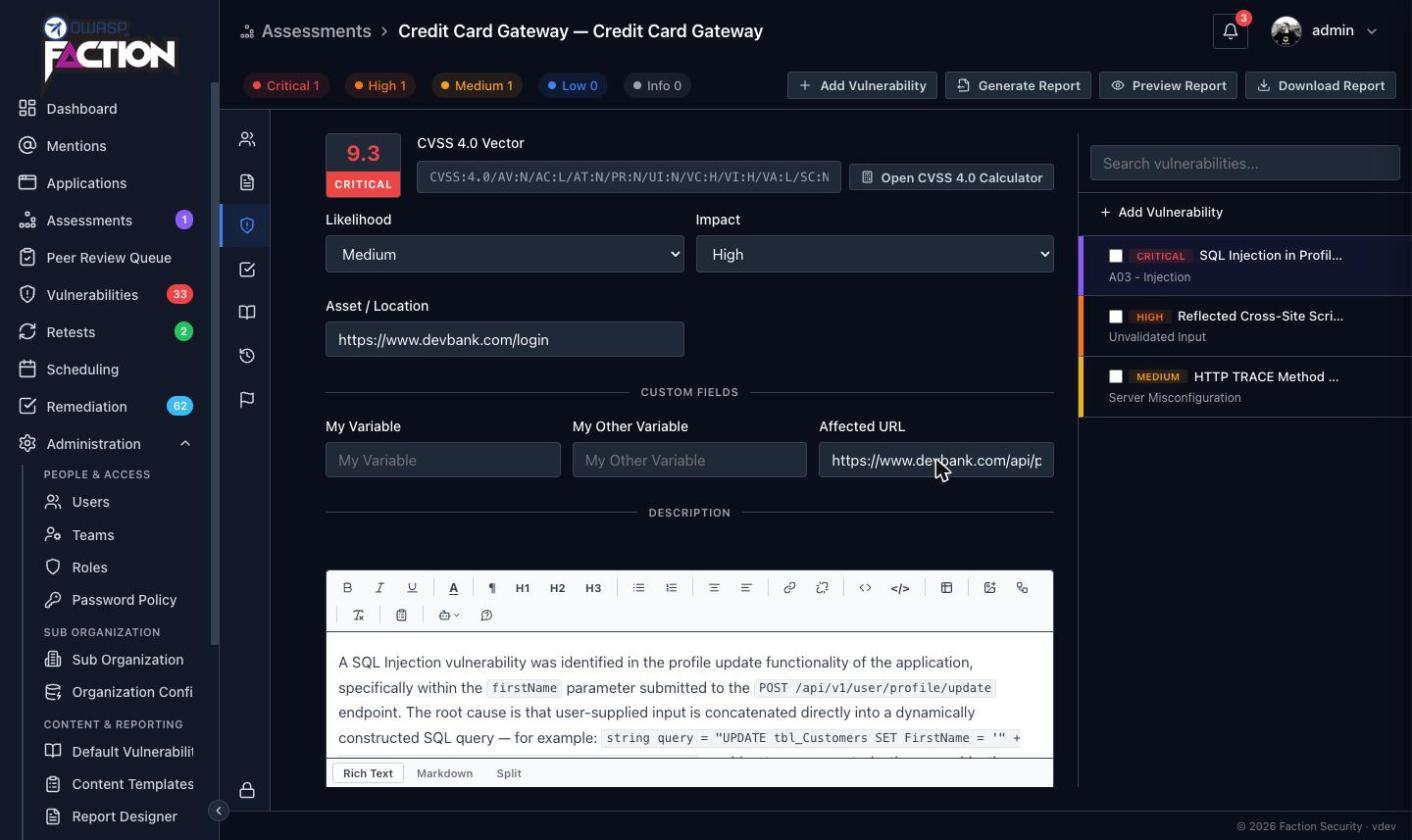
- User Defined Fields — Vulnerabilities holds fields that are filled in on every finding. They appear under Custom Fields on the finding form.
Click Add Field in the panel you want, then fill in the card:
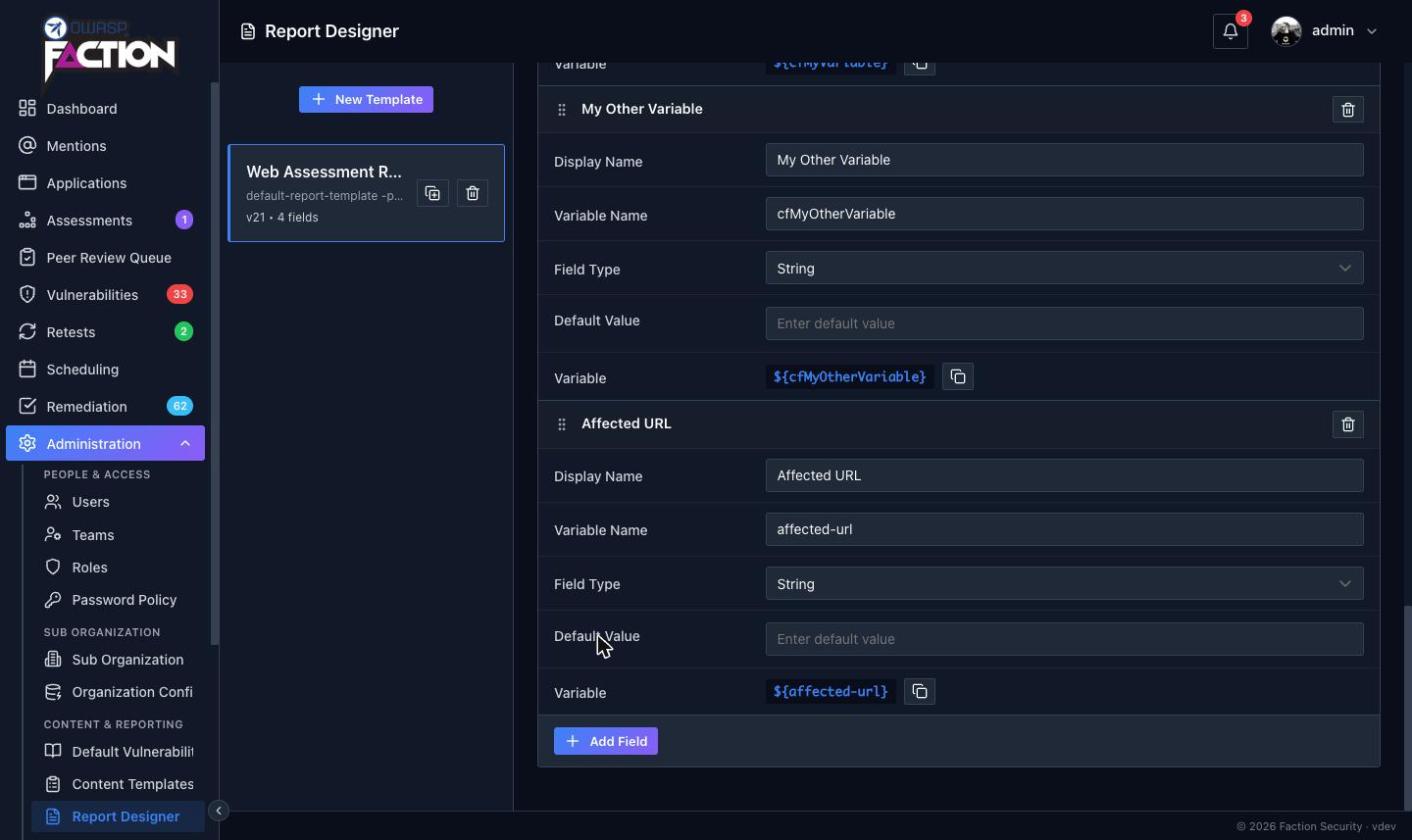
| Setting | What it does |
|---|---|
| Display Name | The label assessors see in the UI |
| Variable Name | The name used in the DOCX template. It is generated from the display name (lower-cased, spaces become hyphens, anything else stripped) but you can change it |
| Field Type | String for a single line of text, Dropdown for a fixed list of options, Rich Text for formatted content with headings, lists, links and images, Hyperlink for an email address or URL that becomes a clickable link in the report |
| Default Value | Pre-filled when the assessment or finding is created |
| Options | Dropdown only: one option per line |
| Variable | The finished ${…} token, with a copy button |
The template saves as you type. Drag the handle on the left of a card to reorder fields; the order here is the order assessors see.
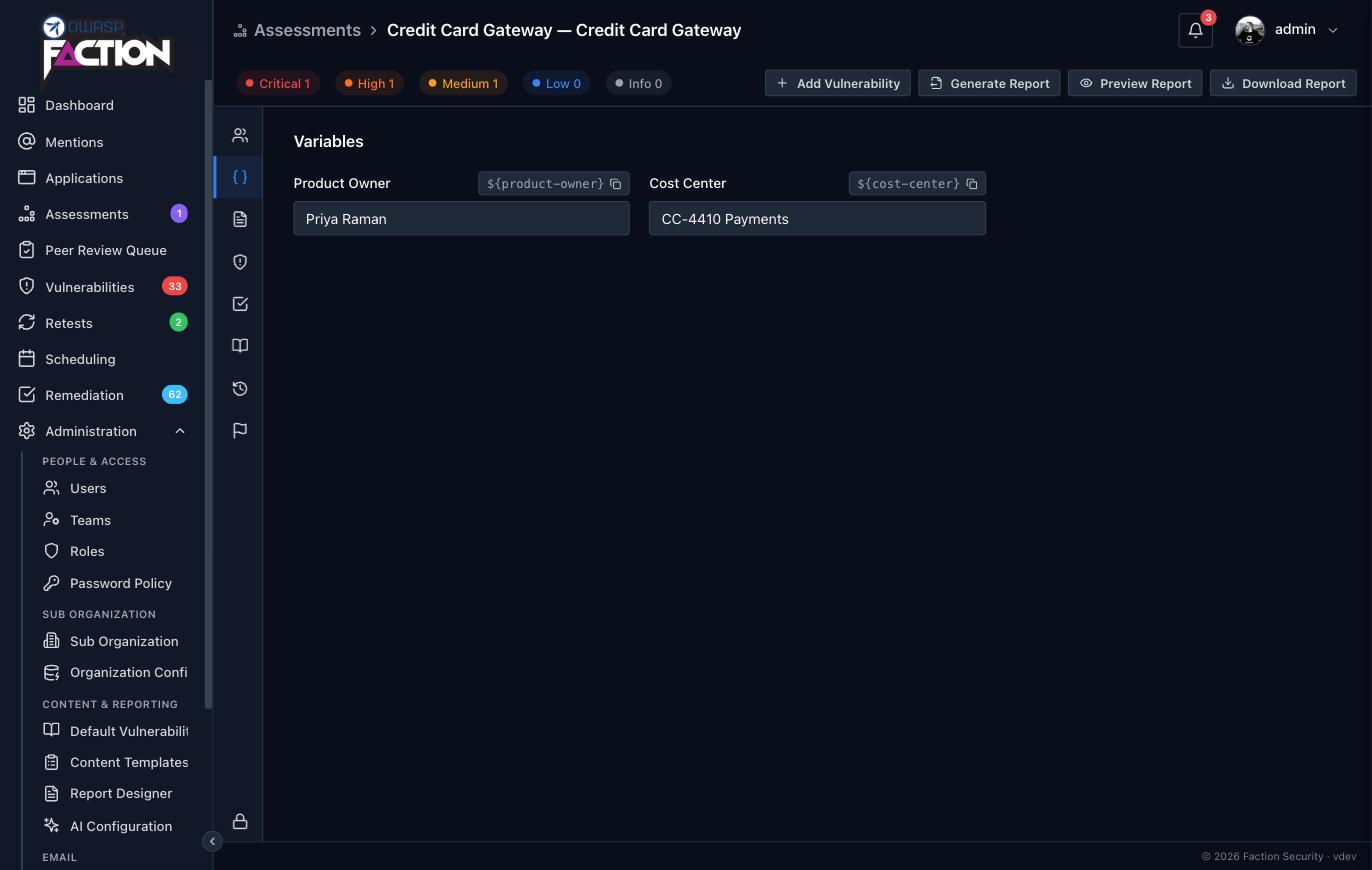
In this example we added Affected URL to the Vulnerabilities panel, which produced the variable ${affected-url}, and two String fields, Product Owner and Cost Center, to the Assessments panel, which produced ${product-owner} and ${cost-center}.
Changing a variable name
Values assessors have already entered are matched to the field by its variable name. Renaming the variable on a template that assessments are already using disconnects those values, so the field comes back empty on every existing assessment and finding. Change the display name freely; change the variable name only on a template nothing uses yet.
Step 2: Use the variable in the report template
Add the variable wherever you want the value to appear in the DOCX. A vulnerability field goes inside the findings table or the ${fiBegin} … ${fiEnd} block, an assessment field can go anywhere.
If the value is a URL or an email address, make it a Hyperlink field and use the variable exactly as it is — ${affected-url} becomes a clickable link wherever it sits in the template. See Hyperlink fields below.
Older templates may use the link suffix instead, which still works. It only links when the variable sits inside a hyperlink you have already added in Word; the address you give it there is a placeholder that is replaced at generation time. See Hyperlinks.
Rich Text fields are rendered as formatted content and can be styled from the template's CSS: each one is wrapped in a div whose class is the variable name.
Step 3: Fill in the field
Vulnerability fields appear under Custom Fields on every finding of an assessment that uses the template:
Assessment fields are filled in on the assessment itself, from the tab strip on the left of the assessment page.
String and Dropdown fields are combined on one Variables tab, the { } icon in the strip. Each field shows its ${…} variable next to the label with a copy button. Here the template has two String fields, Product Owner and Cost Center:
Each Rich Text field gets a tab of its own, named after the field, with the variable shown in the top right:
Once the report is generated, the values take the place of the variables.
Hyperlink fields
A Hyperlink field is filled in like a String field — a single line — but the value is both the text shown in the report and where it links to. There is no separate label to fill in.
Faction decides what to link from what was entered:
| Value | Links to |
|---|---|
ops@acme.com |
mailto:ops@acme.com |
https://acme.com/portal |
the address as entered |
acme.com or www.acme.com/security |
https:// is added |
N/A, a name, version 1.2 |
nothing — shown as plain text |
A field can hold several addresses separated by commas, semicolons or spaces. Each becomes its own link, on the same line, with your separators left exactly as you typed them:
Punctuation at the end of an address, such as the full stop in see acme.com., is left out of the link.
Where the variable sits decides how it is linked:
- In the template body or a findings table — a real Word hyperlink, styled with your template's Hyperlink character style.
- Inside a Rich Text field — for example a finding description that says "escalate to
${contact}" — the same links, rendered through the rich text. - In a page header or footer — plain text. Headers and footers cannot carry links.
Templates change, assessments keep their values
An assessment takes a copy of the template's fields when it is created. When the template changes later, the assessment picks up the changes the next time it is opened: new fields appear, renamed display names and changed options are updated, and fields removed from the template disappear along with their values. Values already entered are kept as long as the variable name has not changed.
Coloring values in the report
A Dropdown value can drive a color in the report, for example a green cell for "Happy" and a red one for "Sad". Each Dropdown field gets its own group under Finding Colors in the Report Designer, with a color for each of its options, and is given its own pair of colors to paint in the template. This is described under Setting custom variable colors.
Only Dropdown fields can be colored: a String field has no fixed set of values to give colors to.
Built-in fields
Every new template comes with two assessment fields, Executive Summary (${summary1}) and Scope (${summary2}), which the sample report templates already reference. They are ordinary user defined fields and can be renamed or removed like any other.