Azure AI Foundry Configuration
Below are the steps to create an Azure OpenAI endpoint that can be used with Faction' AI capabilities.
- Create an AI Foundry Instance if you have not already done so. Skip to step 12 if this part is already complete.
- You have the option to use different types of AI subscriptions. We are using our Copilot subscription for this instance
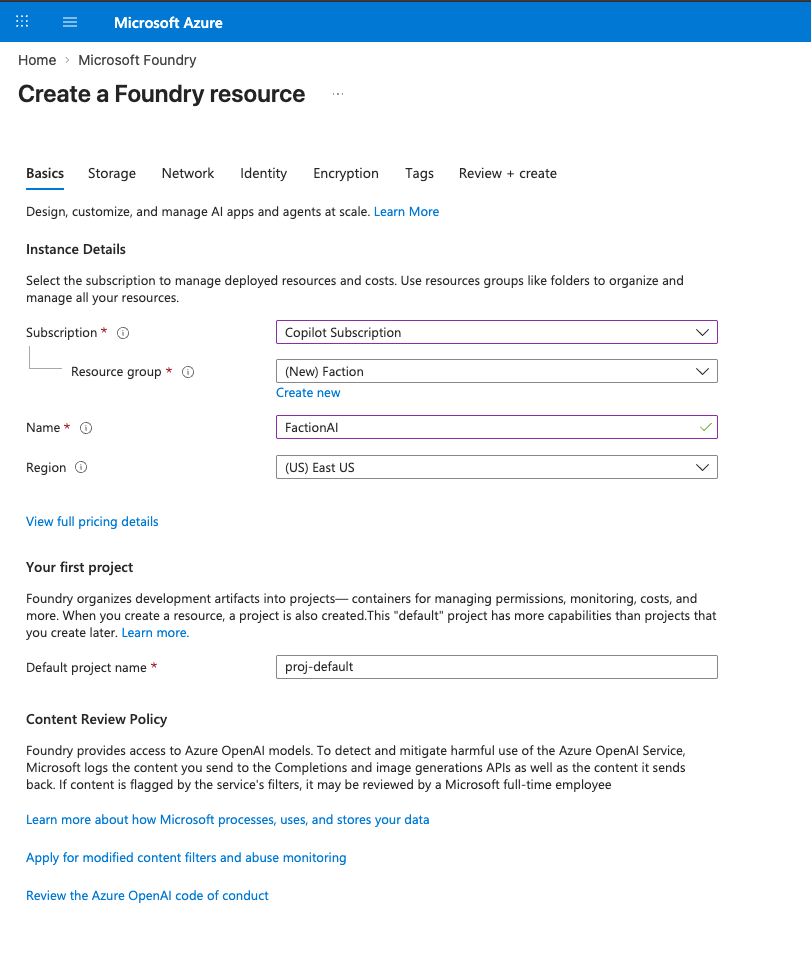
- Click Click Review and Create
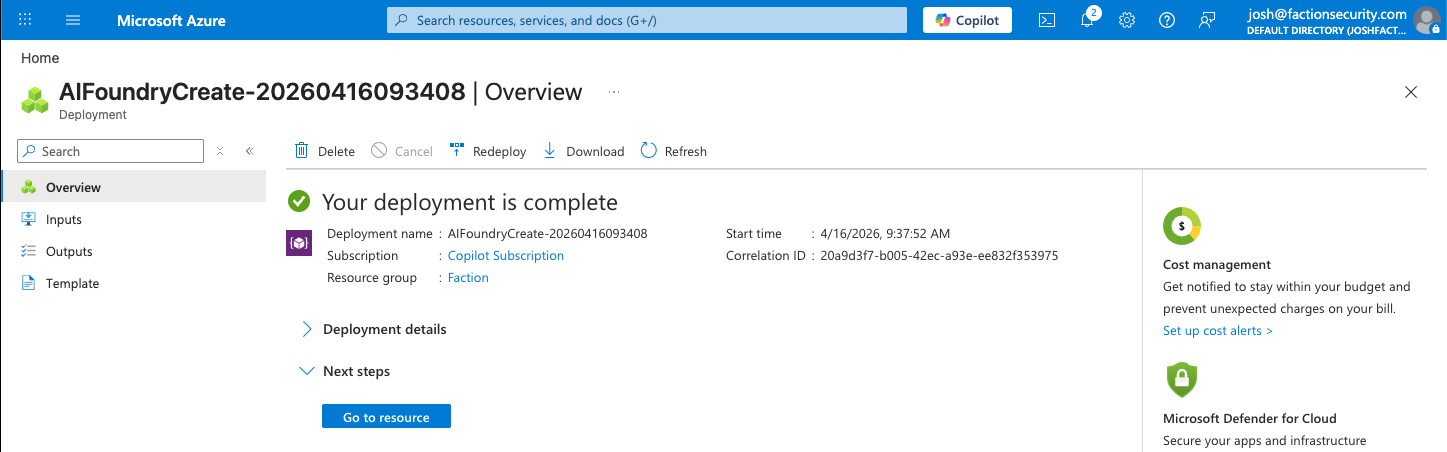
- Click Create
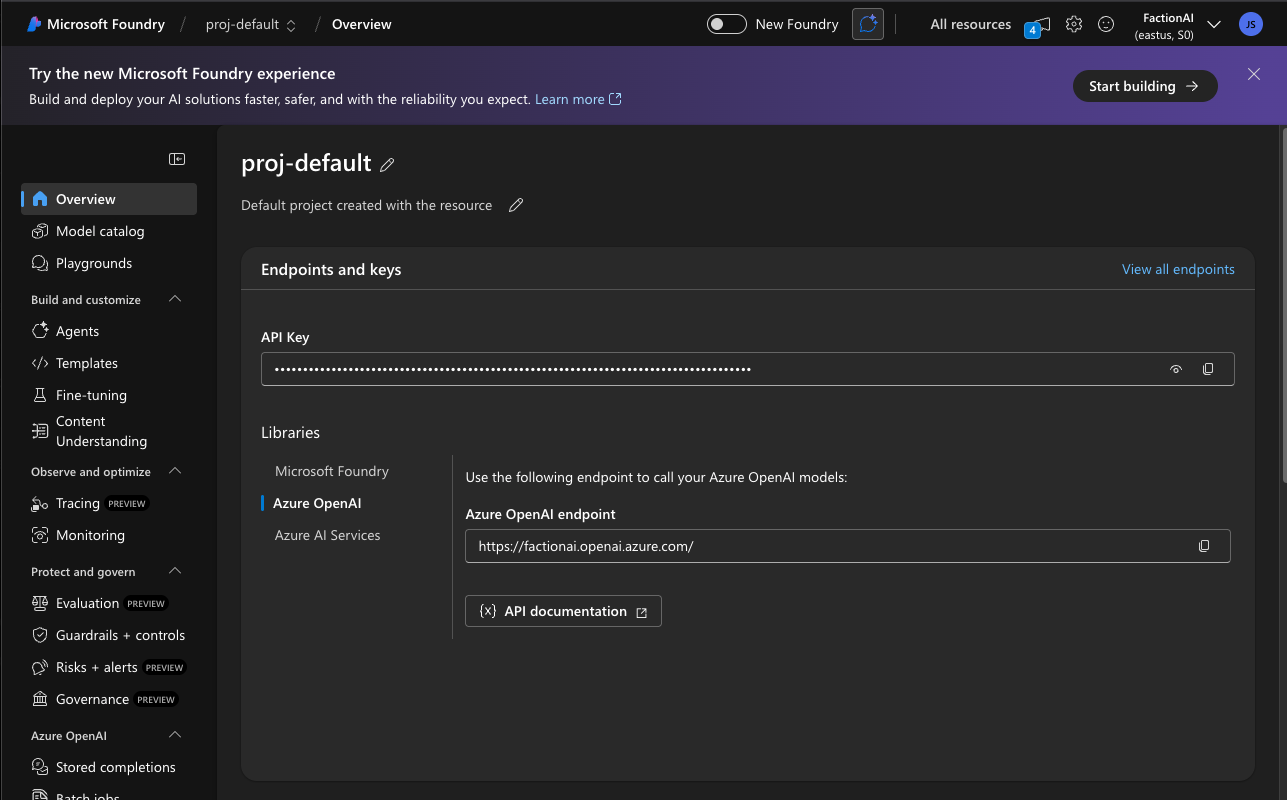
- Click "Go to Resource". This should take you to the AI Foundry Portal
- Once you at the Foundry Portal Click "Model Catalog" in the left side bar.
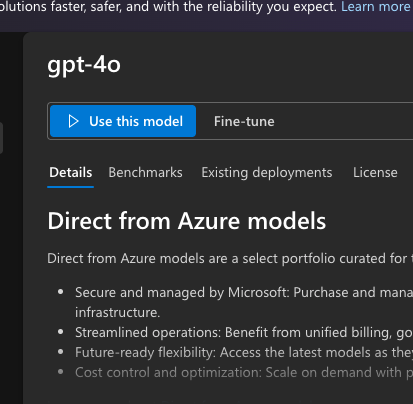
- Search for a model like
gpt-4oand select it. Note some models require additional approvals to use. - Click "Use this Model"
- Name it something meaningful like
faction-gpt-4o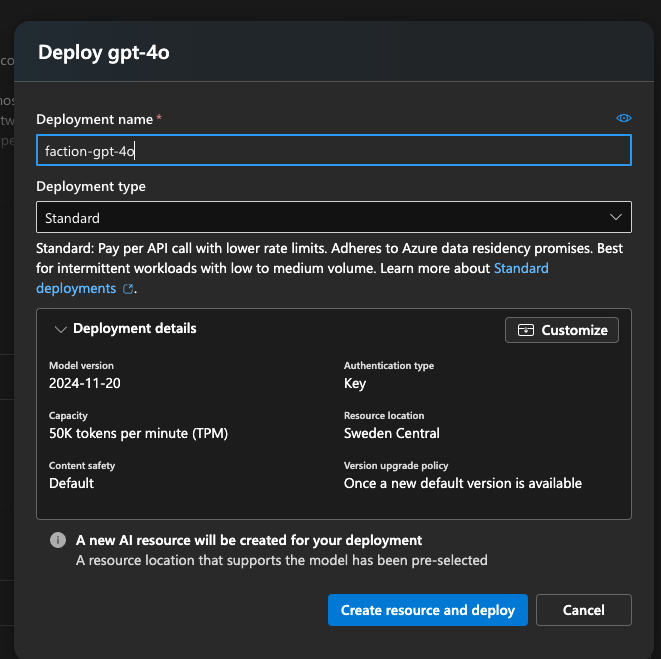
- Click "Create Resource and deploy"
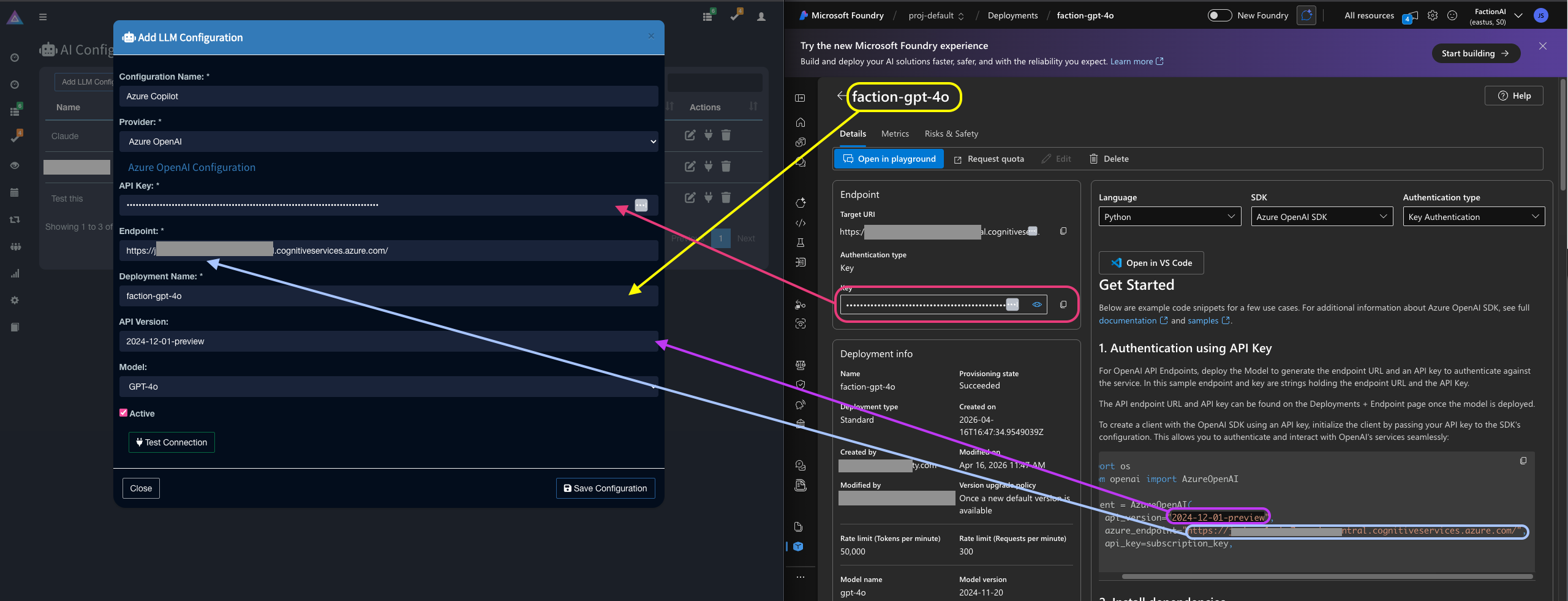
- Once deployed you should be able to see its settings and get your API Key. Leave this page open and navigate to Faction's AI configs in Admin (Admin->AI Config)
- Add a new LLM Config and map the attributes as shown below:
-
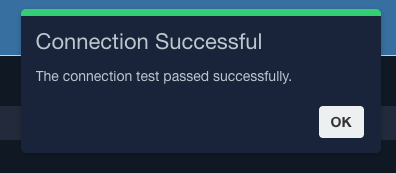
Now click "Test Connection" to verify it works
Now you are ready to use all of Factions AI features like automatic report generation, automated checklists, and executive summary generation.